
Install Nadare on Linux
Nadare is an app that installs and runs anime games on Linux — Genshin Impact, Honkai: Star Rail, Wuthering Waves, NIKKE and more (21 in the Store). You press Install, then Play. It handles the game setup and updates; you do not need to configure Wine or Proton yourself.
Allow about 10 minutes for setup. Game download time varies with the game’s size and your internet connection.
This page assumes nothing. If you already know AppImages and Proton, the download page is all you need.
Before you begin
- A 64-bit Linux desktop from about 2022 or newer: Linux Mint 21+, Ubuntu 22.04+, Fedora, Debian 12+, Bazzite, Arch and friends.
- Graphics drivers. AMD and Intel: nothing to do, they come with your system. NVIDIA: use the official NVIDIA driver from your system’s Driver Manager (Mint) or Additional Drivers (Ubuntu).
- Disk space for the game itself — many of these games are 30–100 GB. A second drive works fine.
- Your game account (miHoYo/HoYoverse, Kuro, STOVE …), if the game needs one. Some games sign you in with a QR code from your phone.
You do not need to install Wine, Proton or Lutris yourself. Games marked Through Steam need Steam installed.
-
Download Nadare
We recommend the Flatpak. Your software centre installs Nadare and handles updates for you.
Need a portable file instead? Download the AppImage and follow the alternative instructions in step 2.
-
Install Nadare
Open the downloaded file with your software centre and press Install. If asked, confirm the installation. Updates arrive through your software centre.
If the file does not open, follow the Flatpak setup help, then return here.
Using the portable AppImage instead?
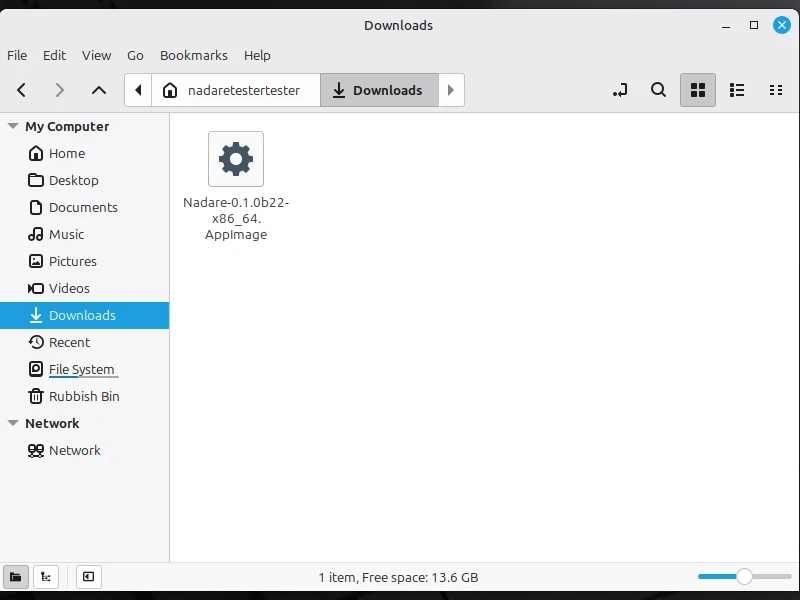
The AppImage lands in your Downloads folder. Allow the AppImage to run
Double-clicking it now does nothing, with no error. Linux does not let a downloaded file run until you say so. The easiest way is Gear Lever, a free app that also puts Nadare in your menu:
- Open your Software app (Software Manager on Mint, GNOME Software, Discover), search for Gear Lever, press Install. The first Flatpak app on a system can be a big download (about 1 GB on Mint).
- Double-click the Nadare AppImage. Gear Lever opens it.
- Press Move to the app menu. Done: Nadare is in your menu.
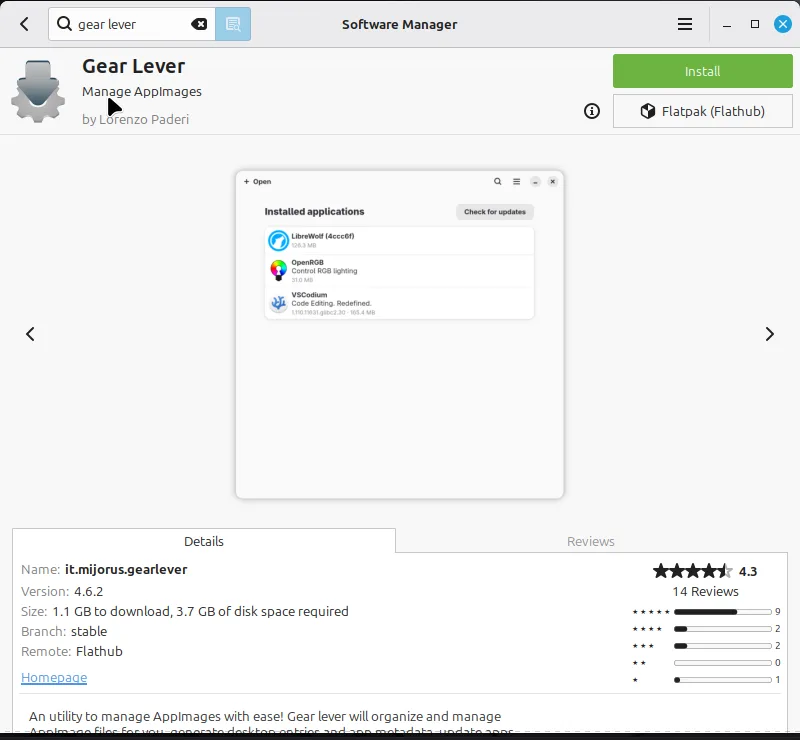
Gear Lever in the Software Manager. 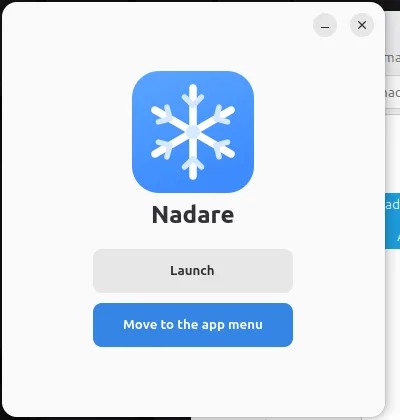
Press Move to the app menu. No Gear Lever? Two other ways
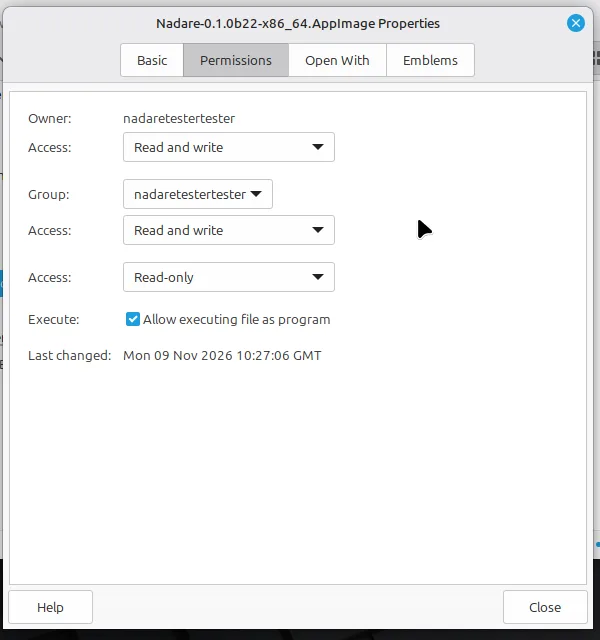
Without any extra app: right-click the file → Properties → Permissions → tick Allow executing file as program, close, double-click. (It starts Nadare but does not add it to your menu.)
Terminal:
chmod +x ~/Downloads/Nadare-*-x86_64.AppImage && ~/Downloads/Nadare-*-x86_64.AppImage -
Open Nadare
Start it from your app menu. The first time, it opens on the Store: every game it supports, each with a badge that says how well it is tested.
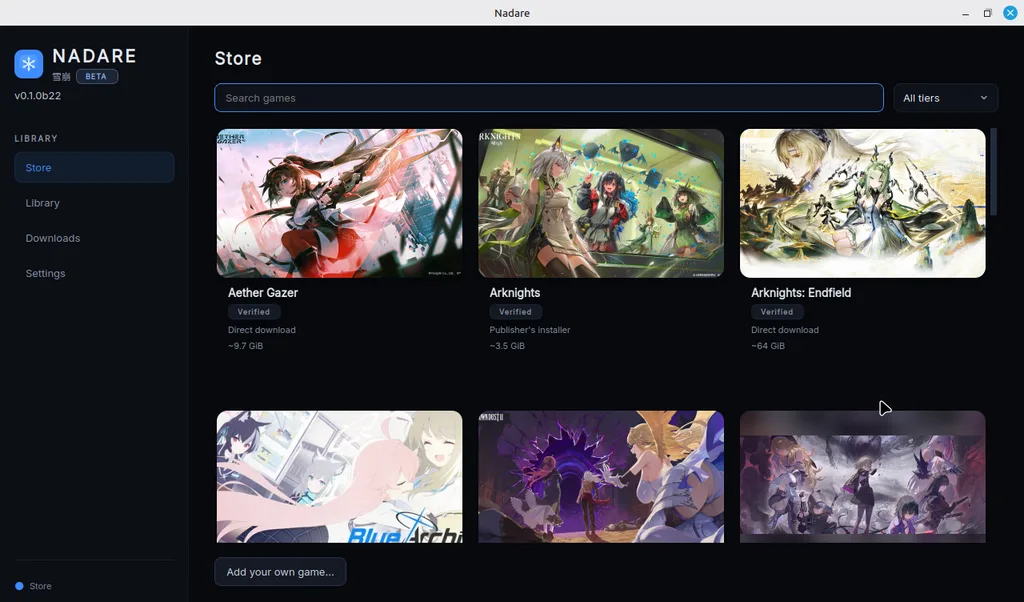
The Store on first start. If it closes at once or says something is missing, see Help — one command tells you what to install.
-
Install a game
Click a game, press Install, and choose
~/Games(the Games folder inside your home folder) as your first library. Nadare downloads the game straight from the publisher. Big games take a while: Nadare’s Downloads page shows the speed, and you can pause and resume.With the Flatpak, use
~/Gamesor another mounted drive. Other folders may need permission; see Help. You can move a game later from its page.Already have the game on disk (from Windows, or another launcher)? In the install window, press I already have it installed… instead, so nothing is downloaded twice.
-
Log in and play
Press Play on the game’s page. Games that need an account ask you to log in there first (some show a QR code to scan with the publisher’s phone app — only scan the one your own Nadare window shows).
- The very first Play takes longer: Nadare downloads its Proton runner and the Steam Runtime once (a few hundred MB). The game page says so while it happens.
- Ubuntu 24.04 and newer need a one-time permission for the game runtime. Nadare asks before the game starts; press Fix it, type your password, then Play now.
- Updates: when a game has an update, its page shows Update. Nadare itself tells you when a new version is out.
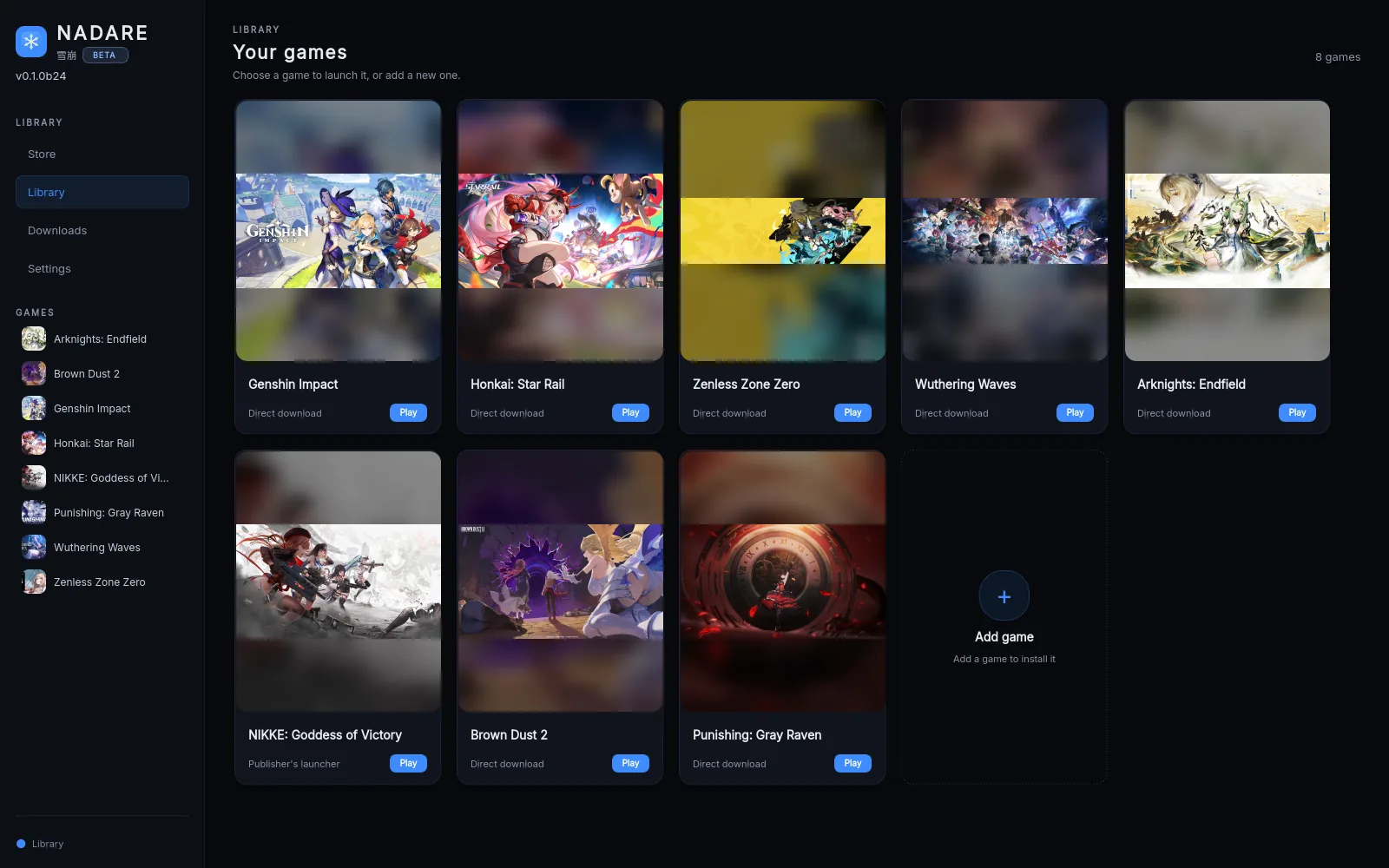
Installed games wait in the Library, each with its own Play button.
Words you will see
Show the Linux gaming glossary
- AppImage
- A whole program in one file. You download it, allow it to run, and start it. Nothing is installed into your system.
- Flatpak
- An app package your Software app installs and updates for you, kept apart from the rest of your system.
- Wine / Proton
- The layer that lets Windows games run on Linux. Proton is Valve’s version of Wine. Nadare downloads its own (DW-Proton); you do not install either.
- Steam Runtime (umu)
- A known set of libraries Proton runs inside, so a game behaves the same on every distribution. Nadare downloads it once, at your first Play.
- Prefix
- A small Windows-style folder for each game. It keeps that game’s Windows settings and installed components separate.
- Library
- A folder (on any drive) where Nadare keeps your games, the way Steam does. You can have several.
- Sandbox
- On by default: while a game plays, it cannot see your home folder, other drives, your passwords or your keys. Only its own folder.
- Keyring
- Your desktop’s password safe (GNOME Keyring or KWallet). Nadare keeps game logins there, never in a plain file.
- Vulkan
- The graphics interface games use through Proton. It comes with your graphics driver.
- Wayland / X11
- The two ways a Linux desktop draws windows. Nadare picks the right one per game; you can change it in the game’s Settings.
Good to know
- Game support varies. Check Games for each game’s test status, and report problems from its game page.
- It is unofficial. Nadare is not made or supported by any game publisher. Read Safety for what that means for your account.
- One copy, please. Use either the AppImage or the Flatpak, not both: they keep separate game lists.
- Moving a game later to another drive is a button on its page (⋯ → Move); nothing needs to download again.
Stuck?
Most problems have a one-line fix on the Help page. Real people answer on Discord.